NorthSec 2026 Electronic Badge
You have probably visited this page because you own a new, shiny NorthSec
2026 electronic badge. Welcome to the #badgelife club! Don't
forget to show the world what you've got on social media using
#badgelife and #nsec2026 tags.
Badge Buttons & Functionality
The badge has 6 physical buttons: four directional buttons (Up, Down, Left, Right) and two action buttons (A, B).
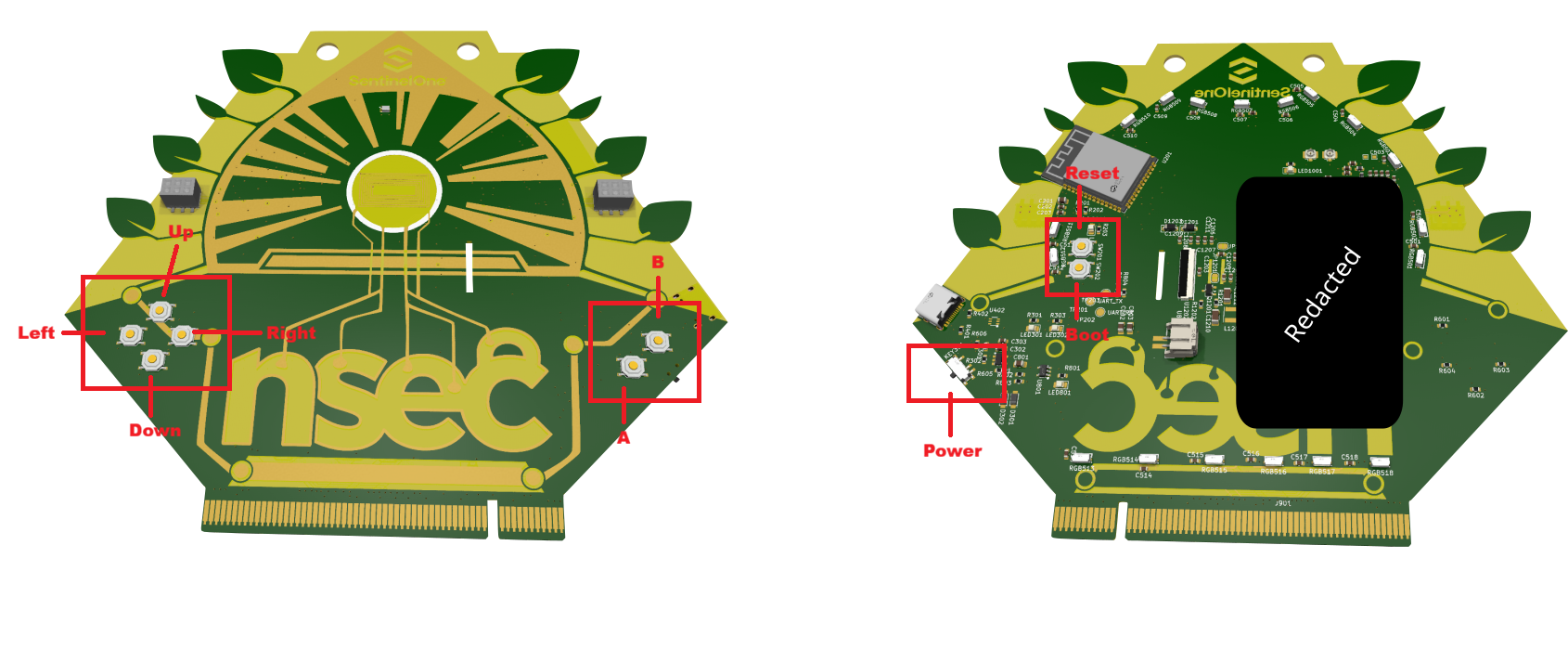
Button Overview
Power toggle is next to A and B buttons on the back.
| Button | Primary Function | In Social Mode |
|---|---|---|
| Up | Open WiFi Portal | Open WiFi Portal |
| Down | Start NFC Pairing | Start NFC Pairing |
| Left | Start NFC Reader | Start NFC Reader |
| Right | Start NFC Emulator | Start NFC Emulator |
| A | Cycle LED animations | Cycle through social categories |
| B | Enter Social display mode | Double-press to hold display |
Pressing the same directional button again (or A) exits that mode and returns to idle.
Directional Buttons — NFC & WiFi
Up — WiFi Portal
Pressing Up activates the badge as a WiFi access point with a captive portal (192.168.4.1).
- SSID:
NSEC-XXXX(unique to your badge, derived from its MAC address) - Password: A random 16-character alphanumeric passphrase (generated on first boot and persisted)
- Timeout: The portal automatically shuts down after 5 minutes of inactivity, or press Up again to exit manually
- LED indicator: A dedicated WiFi portal animation plays while the portal is active
- NFC tap-to-connect: While the portal is active, tapping the badge with an NFC-capable phone will prompt “Connect to Wi-Fi?” — no need to type the password manually. The SSID and password are printed out on the badge’s serial connection as well for reference.
Down — NFC Peer-to-Peer Pairing
Pressing Down enters NFC pairing mode, allowing two badges to exchange profiles.
- LED indicator: Orange breathing animation
- Timeout: Pairing mode lasts 20 seconds before auto-exiting
- How to pair: Hold two badges close together (NFC antennas aligned) while both are in pairing mode
- What gets exchanged: If profile sharing is enabled (via the WiFi portal), badges exchange your name, pronouns, affiliation, contact info, and favorite color
- Pairing outcomes (shown on e-ink display for 5 seconds):
- New Partner! (green LEDs) — Successfully paired with a new badge
- Already Paired (yellow LEDs) — You’ve already paired with this badge
- Pair Failed (red LEDs) — Authentication failed
- Partner tracking: Your badge remembers up to 128 unique partners, viewable in the WiFi portal’s Contacts section
Left — NFC Reader
Pressing Left enters NFC reader mode, which scans for nearby NFC tags.
- LED indicator: White breathing animation
- No timeout — stays in reader mode until you press Left again or A to exit
- Scan results: When a tag is found, the e-ink display shows the tag’s UID (in hex) and any NDEF text content for 15 seconds, with a green LED flash
Right — NFC Emulator
Pressing Right enters NFC tag emulation mode, making the badge appear as an NTAG213 tag to phones and readers.
- LED indicator: Cyan breathing animation
- No timeout — stays in emulation mode until toggled off
- Default content: Emulates an NDEF tag with your badge’s unique identifier
- On boot: On boot, the emulator serves a URL pointing to
https://nsec.io/badge— tap with a phone to visit the event page
Action Buttons — Animations & Social
A — Cycle Animations (Idle Mode)
While in idle mode, pressing A cycles through 26 LED animations:
aurora, burning, comet, cycles, fav_breathe, fav_noise, fav_orbs, fireflies, flow, gemstone, gold_calm, lava_lamp, nsec_glow, nsec_marquee, nsec_meter, nsec_wave, ping_pong, pink_gold_circling, prism, radar, rainbow, siren, smooth_glow, sparks, splotches, strobe
Each press advances to the next animation. After the last one, it wraps back to the first. LED brightness can be adjusted via the WiFi portal (0–255).
B — Social Progress Display
Pressing B enters social display mode, showing your progress across social categories on both the e-ink display and LEDs.
Social categories:
| Category | LED Color | How to Earn |
|---|---|---|
| Social | Purple | Pair with other attendee badges via NFC (Down button) |
| Sponsor | Green | Pair with sponsor badges via NFC |
| Light | Blue | Automatic — collected passively via the ambient light sensor |
- Each category ranges from 0 to 255
- LEDs visualize progress: the number of lit pixels (out of 18) corresponds to your value
- The e-ink display shows the category name and progress
- Timeout: The social display disappears after 5 seconds unless held
- Hold display: Double-press B to lock the display indefinitely (press again to release)
- Press A to cycle between Social → Sponsor → Light → Social…
Rainbow celebration: When all three categories reach 255, the LEDs switch to a rainbow cycling animation as a visual celebration of your achievement!
WiFi Portal
Connect to your badge’s WiFi network (NSEC-XXXX) using the password displayed on the badge. Once connected, open any webpage — the captive portal should redirect you automatically. Otherwise, navigate to the IP address listed.
Portal Features
- Badge Settings
- Color picker: Choose your favorite color (RGB) — this tints compatible idle animations
- Brightness slider: Adjust LED brightness (0–255), applied immediately
- Profile Sharing
- Toggle profile sharing on/off (default: off)
- When enabled, set the info exchanged during NFC pairing:
- Name (max 20 characters)
- Pronouns (max 10 characters)
- Affiliation (max 30 characters)
- How to reach me (max 60 characters)
- ⚠️ Shared data is not encrypted — only share what you’re comfortable with
- Social Progress
- View your current Social, Sponsor, and Light values as progress bars (read-only)
- Contacts
- Browse all badges you’ve paired with via NFC
- Each contact shows their name, pronouns, affiliation, contact info, and color (if they had sharing enabled)
Additional Details
- Status LED: A small red LED on the badge pulses every 500ms as a heartbeat indicator — this confirms the badge is powered and running
- Boot animation: A special boot animation plays on startup (separate from the idle cycle)
- E-ink display: If connected - shows the NorthSec logo when idle. Mode-specific screens appear temporarily during NFC scans, pairing, and social display, then revert to the logo
- Light sensor: Ambient light above ~600 lux passively fills your Light social value. The brighter the environment, the faster it fills. It slowly decays in darkness after a 30-minute hold period
- Serial CLI: Connect via USB (115200 baud) for diagnostic commands — type
helpfor a list of available commands
Battery
The Nsec badge comes with a LiPo battery.
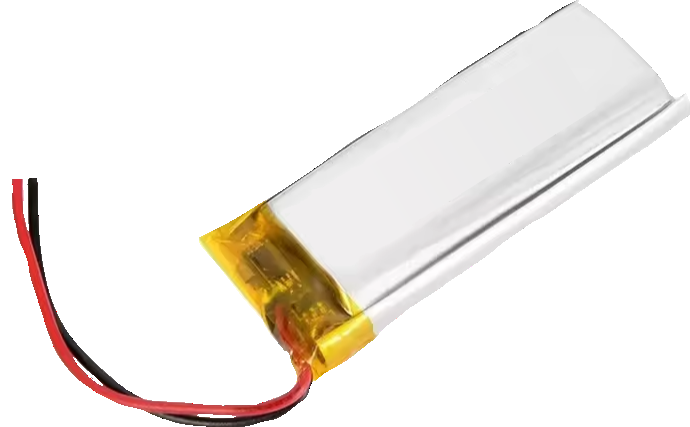
Here are some basic LiPo battery handling guidelines:
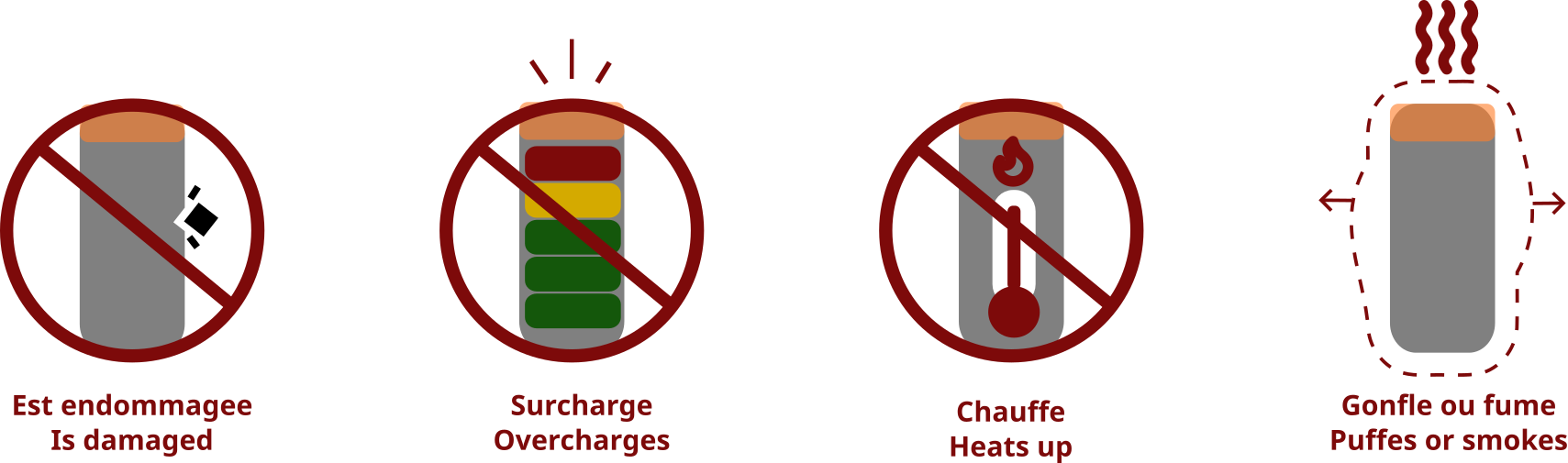
- Notify a volunteer or staff member if you notice any of the following situations:
- A damaged battery
- A battery being overcharged
- A battery getting hot
- A swollen battery
- A battery producing smoke
- Please make sure to:
- Charge your badge under supervision
- Avoid damaging the battery
- Disconnect the battery before working on the badge
- Keep the battery away from water and other liquids
- Keep the battery away from heat sources (sunlight, soldering irons, stage lights, etc.)

If you have any questions, feel free to contact a member of the event staff.
If you have concerns or witness an incident involving a badge, please notify a staff member immediately.
If you have any questions or doubts, do not hesitate to speak with the members of the soldering village.